


How to Translate a YouTube Video While You Watch (2026)
Translate YouTube videos while you watch: Auto-translate, audio tracks, AI dubbing, and translating captions in the player. What to use when there is no CC.
6 min read
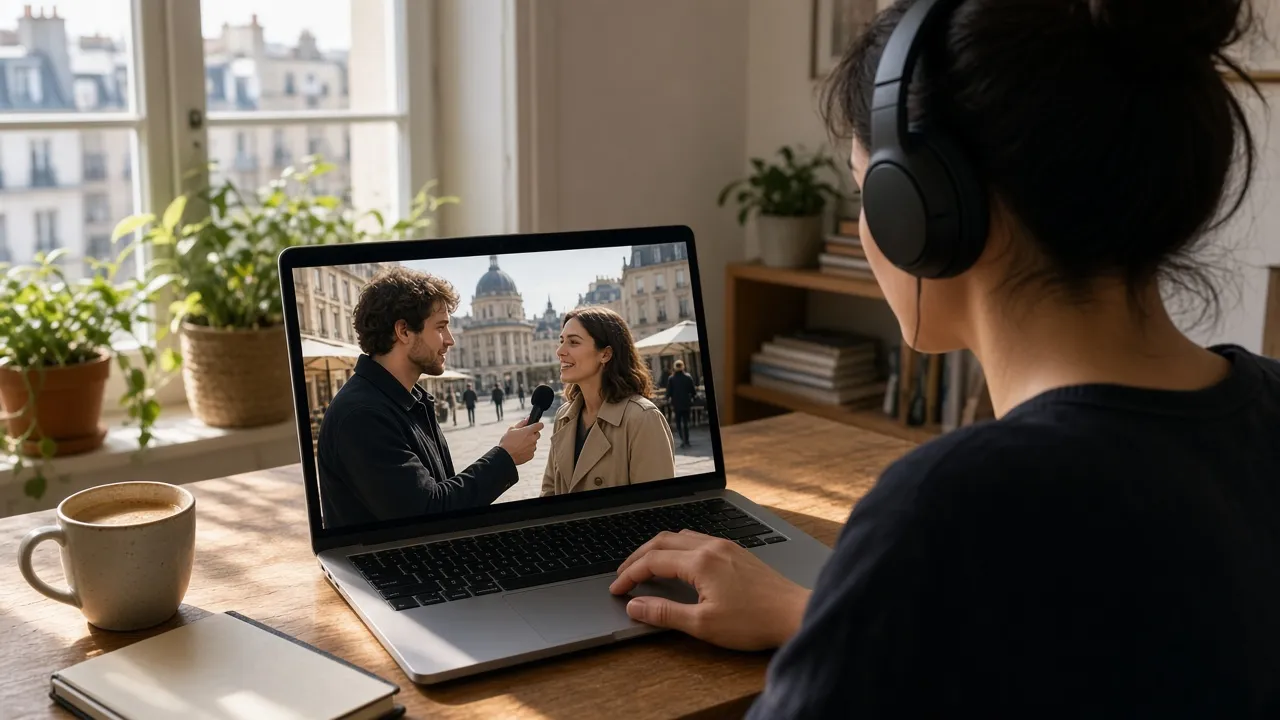
Short answer: if you are watching, not uploading, start with YouTube’s own Auto-translate. It needs existing captions and it replaces the original line. To keep both languages on screen, or to translate a video that has no CC at all, use a desktop browser extension. Tools that ask you to paste a YouTube link and “generate a new video” are for creators who want a dubbed file, not for watching right now.
Disclosure: this guide is written by the LingTube team. LingTube is one of the watch-time tools below. YouTube’s Auto-translate and audio-track menus were checked in October 2026.
Four ways to translate a YouTube video
| Method | What you get | Needs captions first? | Best for |
|---|---|---|---|
| YouTube Auto-translate | One translated caption line | Yes | Quick viewing when CC already exists |
| Audio track | A dubbed voice uploaded by the creator | No | Videos that actually provide multiple audio tracks |
| AI dubbing site (paste a link) | A new video file with a synthetic voice | Usually yes | Creators localizing their own upload |
| Extension while you watch | Dual subtitles, optional spoken translation | No, if it can transcribe | Language learning, or videos with no CC |
Most search results for “translate YouTube video” rank the third row. That is a different job. If your goal is “I want to understand this video in the next two minutes,” skip the dubbing sites.
1. YouTube Auto-translate (when CC is already there)
On a computer:
- Play the video and turn CC on.
- Click the gear → Subtitles/CC → Auto-translate.
- Pick your language.
On a phone: tap CC, then the gear → Captions → Auto-translate. Phone menus often list fewer languages than desktop.
Limits that matter:
- No CC button, no translation. Auto-translate cannot invent captions. See no captions on YouTube.
- You see one language. The original line disappears, which is a problem if you are learning that language.
- The source is often auto-generated English, chopped mid-sentence. The translation inherits those cuts.
- Quality is machine translation of those fragments, not a full-sentence rewrite.
This is still the right first step for “I just need to follow a recipe in another language.”
2. Change the audio track (when the creator added one)
Some videos ship extra dubbed audio. Gear icon → Audio track → pick a language. There is nothing to install.
Most videos have only the original audio. If the menu is missing, this method is not available. YouTube’s own AI dubbing, when the creator enabled it, also appears here. It replaces the voice. It does not give you dual subtitles.
3. Paste-a-link AI dubbing (for creators)
Sites such as Vozo, HeyGen, and RecCloud take a YouTube URL and output a translated video with a new voice, sometimes with lip-sync. They are built to publish a localized copy.
They are the wrong tool if:
- you do not own the video,
- you want to watch it now, in the YouTube player,
- you need the original and the translation on screen together.
Use them when you are the uploader and you want a second-language file.
4. Translate in the player, while you watch
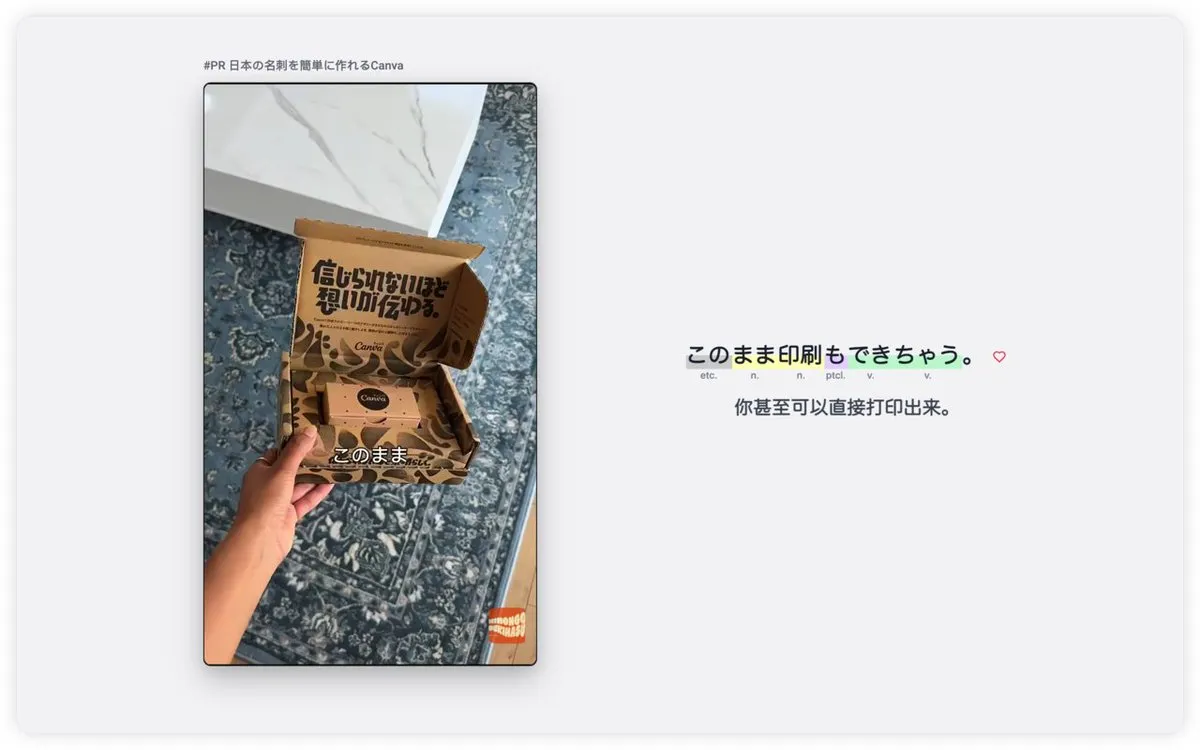
A language-learning extension runs on the YouTube page, shows the original subtitle, and adds a translation under it. That is dual subtitles. In LingTube you can also tap a word or select a phrase to look it up in context; the language model evaluates the entire sentence so that words with multiple meanings are resolved accurately according to the current context.
If the video has captions: the extension translates the existing captions and can merge YouTube’s chopped auto captions back into sentences.
If the video has no captions: LingTube’s AI transcription writes new captions from the audio, then translates them. That is a paid quota. Dual subtitles themselves are free. New accounts get 3 days of Premium.
Spoken translation: simultaneous interpretation reads the translation aloud while the video plays. Use it to get through a fast interview, then turn it off and study the lines. It runs on YouTube, not Netflix.
LingTube does this on YouTube (including Shorts) and Netflix, in desktop Chrome, for English, Japanese, Korean, French, German, Spanish, Italian, and Simplified Chinese. It does not dub a new video file, and it does not run in the YouTube phone app.
A two-minute setup
- Install LingTube and set the spoken language plus your language.
- Open the video and enter study mode.
- If CC is on, you should see two lines. If CC is grey, start AI transcription.
- Read the original first. Glance at the translation only for the words you missed.
How this compares to “YouTube translator” extensions
Search results also mix in extensions that only auto-translate the existing CC, and extensions that dub the audio. The difference is whether you still see the original line, and whether the tool can recover when captions are missing.
| Method | Original + translation | Works with no CC | In the YouTube player | Learning tools |
|---|---|---|---|---|
| YouTube Auto-translate | No | No | Yes | No |
| Audio track / AI dub | Voice only | n/a | Yes | No |
| Paste-a-link dubbing site | New file | Often needs a transcript | No | No |
| LingTube | Yes | Yes (transcription) | Yes | Grammar, notes, shadowing |
| Language Reactor | Yes | No | Yes | Dictionary, transcript panel |
| Trancy | Yes | Yes (daily quota on paid) | Yes | Flashcards, speaking coach |
Language Reactor and Trancy are compared in more detail in Language Reactor vs Trancy vs LingTube.
Turning off YouTube’s auto-translated titles
A related complaint: YouTube rewrites video titles into your interface language. That is not subtitle translation.
- On desktop, click your profile avatar in the top right (or the three-dot menu if signed out) → Language, and set it to the language you want titles displayed in.
- Extensions that block title translation exist; they do not translate the video for you.
Do not confuse “stop auto-translating titles” with “translate this video.” They are opposite jobs.
FAQ
How do I translate a YouTube video to English?
If CC exists: gear → Subtitles/CC → Auto-translate → English. If you want English and the original, use a dual-subtitle extension. If there is no CC, transcribe first, then translate.
How do I turn on auto translate in YouTube?
Turn CC on, then gear → Subtitles/CC → Auto-translate, and pick a language. The option is missing when the video has no captions.
Is there auto translation on YouTube?
Yes, for captions and sometimes for titles and audio. Caption auto-translate still needs existing captions.
Can I Google Translate a video?
Google Translate does not play YouTube videos. YouTube’s Auto-translate is the closest built-in option. Watch-time extensions use their own engines (machine translation or a large language model) on the subtitle text.
What is the best Chrome extension to translate YouTube subtitles?
If you only want a translated line, YouTube’s own Auto-translate is enough. If you want both languages, word lookup, and a fallback when CC is missing, use a language-learning extension. LingTube is built for that on YouTube and Netflix; Trancy covers more platforms; Language Reactor is the long-standing free option.