


How to Ask AI Questions Inside YouTube: Real-Time Grammar and Sentence Breakdown (2026)
Discover how to chat with AI directly inside the YouTube player about any line or subtitle: unpack tricky grammar, speech levels, and cultural nuance with instant timestamp jumps.
4 min read
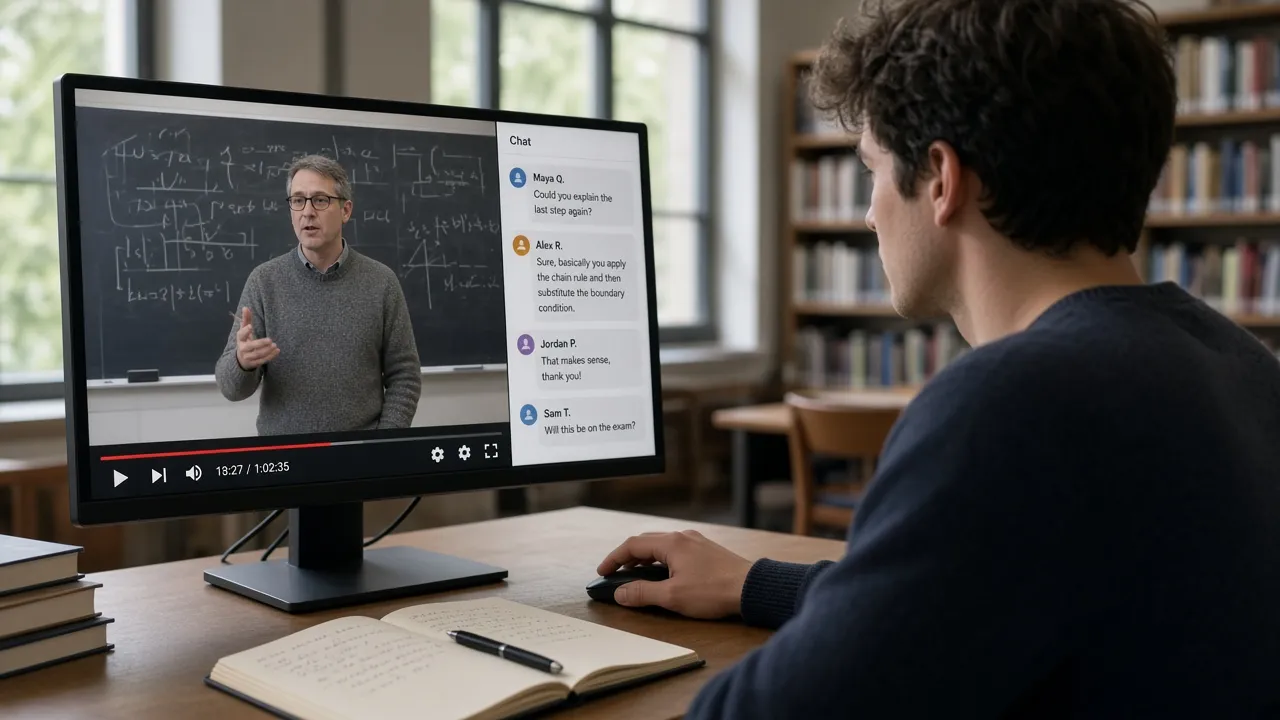
Short answer: Most “chat with YouTube” tools online are generic summarizers: you paste a video link, and the AI spits out a few high-level bullet points designed to help people skip the video entirely. For language learners, the need is exactly the opposite: you want to stay in the player and ask targeted questions about the specific line currently spoken—why the speaker chose a humble verb form, how a particle functions grammatically, or who a pronoun actually refers to—and have the AI provide clickable timestamps that jump straight back to the scene. A separate ChatGPT tab cannot track your real-time playback position unless you constantly copy and paste lines manually.
Disclosure: This guide is written by the LingTube team. The in-player AI inquiry capabilities described below correspond to LingTube’s built-in AI tutor module, verified as of October 2026.
Three Types of Video AI Tools and How They Differ
| Tool Category | Core Deliverable | Integrated Directly in YouTube Player? | Specifically Built for Language Learners? |
|---|---|---|---|
| YouTube Official Transcript / Chapters | Plain-text subtitle list with timestamps and creator-set chapters | Yes | No (Static text browsing only; no grammar breakdown or interactive Q&A) |
| Standalone Web Summarizers (URL paste tools) | Web-based single-page summaries, bullet outlines, or quizzes | No (Requires jumping to external websites) | No (Aimed at quick information consumption and skimming) |
| In-Player, Context-Aware AI Chat | In-depth grammatical analysis on the current subtitle line with timestamp jumps | Yes (Seamlessly integrated into player UI) | Yes (Engineered specifically for comprehension, nuance analysis, and listening retention) |
If you simply want to browse the complete text of a video, YouTube’s native “Show transcript” button is very useful (see our guide on YouTube transcripts and summaries). This guide focuses on how to leverage in-player targeted questions to rapidly acquire authentic language skills.
High-Value Questions to Ask During Video Study
Recommended Questions (Focus on context and linguistic nuance):
- “Why did the character use a humble verb form here instead of standard polite speech?”
- “What grammatical role is this particle playing in this particular sentence?”
- “Is this colloquial phrase commonly used in daily life, or is there a more natural modern equivalent?”
- “Give me a brief summary of the key arguments in the next two minutes so I can test my listening comprehension.”
- “What authentic collocations in this segment are worth saving to my vocabulary deck?”
Scenarios Where Asking the Chatbot Is Inefficient:
- Asking “Summarize the entire video”: For complete overviews, use the dedicated AI Summary and Mind Map feature to generate a structured timeline instantly.
- Asking “Translate this line into English”: Full dual subtitles already display accurate, context-aware translations beneath every line (see how to translate YouTube videos).
- Trying to export huge blocks of text or complete homework assignments: The in-player chat is designed as an interactive companion tutor, not a bulk exporter.
AI response quality depends heavily on the underlying subtitle track. If YouTube’s auto-generated captions are severely chopped up, enable Smart Sentence Merging or AI Re-transcription first so the language model receives complete grammatical context before you ask questions.
Step-by-Step: Asking AI Questions Inside the Player
Here is how to use the feature with LingTube in desktop Chrome:
- Install the LingTube Chrome Extension and configure your target study language and native language.
- Open any YouTube video and enter learning mode. If the video lacks captions, click “AI Transcribe” to generate a clean, accurate transcript.
- (Optional) Generate an AI Outline to scan key topics across the timeline.
- Open AI Chat in the sidebar. Type your question naturally in your native language. The AI will respond by citing specific terminology and original phrases from the video.
- Whenever the AI references a specific moment in the dialogue, click the timestamp link to jump directly to that second and hear the audio again.
- When you uncover an invaluable phrase or explanation, click the note icon to create a Timestamped Note, or switch on Shadowing mode to master the pronunciation.
LingTube’s in-player AI chat, video summaries, mind maps, and high-precision transcription are built exclusively for YouTube as premium features (Plus $5.99/mo, Premium $9.99/mo, with a 3-day free trial for new users). On Netflix, due to DRM restrictions, in-player AI tutor chat and speech transcription are not supported, but official dual subtitles, word lookups, danmaku, timestamped notes, and shadowing remain fully functional.
Frequently Asked Questions
How does this differ from pasting a video link into ChatGPT?
General web chatbots take you away from the video interface and cannot pinpoint exact seconds on the timeline. LingTube is embedded directly inside the player, analyzing the exact sentence currently playing and offering one-click timestamp jumps back to the audio.
When should I use single-word lookups vs. asking the AI tutor?
If you only need the definition, part of speech, or conjugation of an unfamiliar word, simply tapping that word on the subtitle line gives you an instant context-aware lookup. When dealing with broader sentence nuances, cultural allusions, or pragmatic tone, open the AI chat for an interactive dialogue.
Does this feature work on smartphones or smart TVs?
No. LingTube is built specifically as a desktop Chrome extension and cannot run inside mobile apps or smart TV interfaces.