


How to Fix Broken YouTube Auto-Captions: Smart Sentence Merging Guide (2026)
Why YouTube auto-generated captions split on pauses instead of sentences, breaking translations and grammar. How to merge caption fragments and re-transcribe audio inside the player.
4 min read
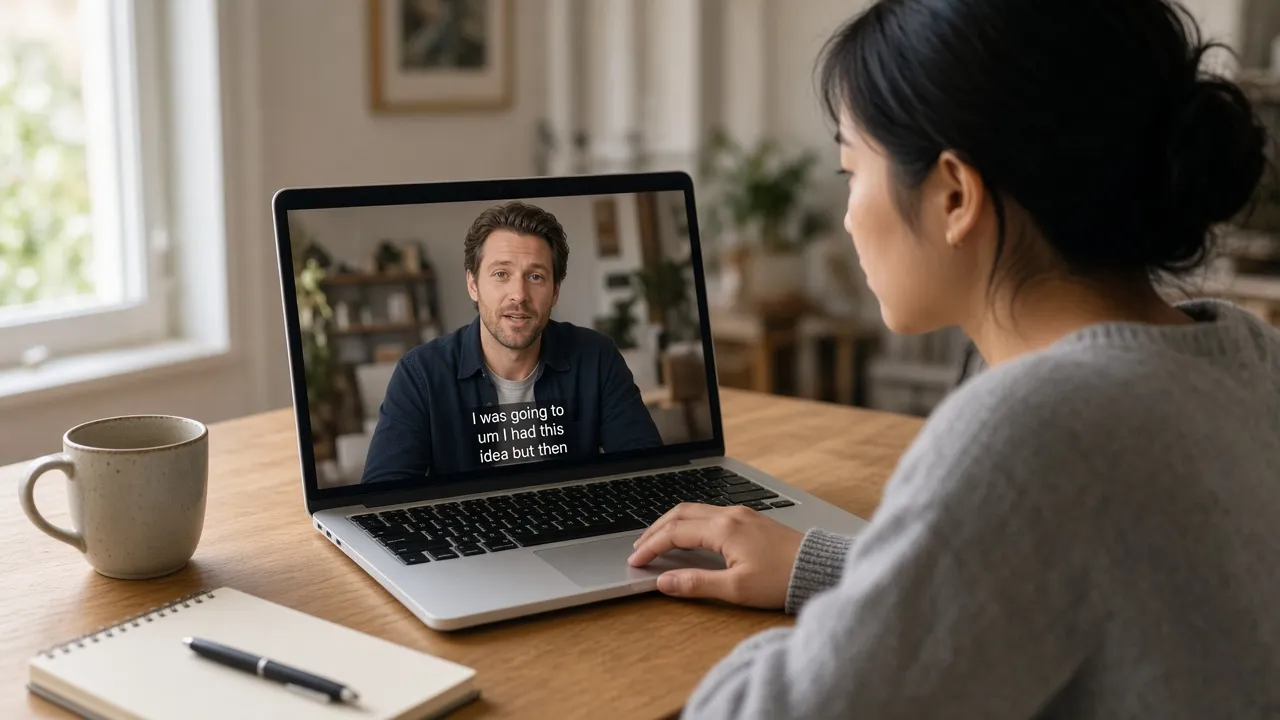
Short answer: YouTube’s auto-generated captions rely on speech recognition models that slice timestamps around brief pauses or breaths rather than grammatical sentence boundaries. A single cohesive sentence like “I was going to tell you / about the thing that happened / yesterday” is frequently split across two or three disjointed lines. When translation engines or dictionary tools process these fragments individually, the lack of context leads to gibberish translations. As a viewer (rather than the video owner), you cannot edit the official caption file. The most reliable solution is to use a browser learning extension (such as LingTube) that supports smart sentence merging or AI audio re-transcription directly inside the player to reconstruct complete, grammatically sound sentences.
This guide is written specifically for viewers and language learners actively studying videos. Official YouTube Help and Studio documentation only explain how creators can upload and adjust subtitles; for viewers frustrated by chopped-up captions, client-side tools provide an immediate fix.
Disclosure: This article is written by the LingTube team. LingTube includes built-in smart sentence merging and real-time AI audio transcription, verified against YouTube’s player behavior as of October 2026.
Auto Captions vs. “No Captions”: Understanding the Difference
| What You See on the Player | Root Cause | Effective Solution for Viewers |
|---|---|---|
| Caption button (CC) is grayed out | No caption track exists for the video | Use AI speech recognition to generate subtitles directly from audio (see what to do when YouTube has no captions) |
| CC button is active, but lines are chopped up and full of errors | YouTube auto-generated captions sliced on pauses | Enable smart sentence merging or run an AI re-transcription |
| CC button is active, but not in your target language | Existing official or foreign-language captions | Turn on auto-translate or use a dual subtitles extension for bilingual side-by-side study |
YouTube generates automated captions using server-side speech recognition, though creators can choose to disable the feature. The fundamental flaw with auto captions is that they segment on acoustic silence, never waiting for a clause or thought to conclude.
While isolated keywords might suffice for general accessibility, chopped captions are disastrous for language learning. Accurate machine translation, part-of-speech tagging, and shadowing all demand complete sentences.
Why Fragmented Captions Break Translations Completely
Neural machine translation engines (like Google Translate and DeepL) and grammatical parsers rely on full-sentence context. If you feed an isolated fragment like “about the thing that happened”, the model has no way of knowing the subject or tense. In Japanese, if the topic particle は is isolated onto its own line, translation tools will almost certainly misinterpret it as the noun for “teeth” (歯).
Fixing inaccurate subtitle translations does not require switching translation engines; it requires recombining broken caption fragments into complete sentences before passing them to the translator.
Realities and Constraints from the Viewer’s Perspective
When watching someone else’s video, viewers face practical boundaries:
- You cannot modify the creator’s raw caption files stored on YouTube’s servers.
- YouTube Studio’s “Duplicate and Edit” caption tool is restricted strictly to channel owners.
- Running a full-page web translator over chopped subtitles simply translates garbled fragments into garbled foreign text.
- Refreshing the page, switching browsers, or toggling the CC button will not change how YouTube timestamps its auto captions.
The only viable fix is a client-side extension (like LingTube) that intercepts caption lines before rendering, repairs sentence boundaries locally, and displays clean, synchronized bilingual captions.
How to Repair Chopped Captions While You Watch
Here is the setup process using LingTube in desktop Chrome:
- Install the LingTube Chrome Extension and pin it to your browser toolbar.
- In the extension settings, select the video’s spoken language and your native tongue (supporting English, Japanese, Korean, French, German, Spanish, Italian, Simplified Chinese, and more).
- Open any YouTube video and enter learning mode.
- Enable Smart Sentence Merging. The extension automatically evaluates punctuation cues, conjunctions, and clause syntax, seamlessly stitching disjointed fragments into a single complete sentence before rendering and translating.
- If the original auto captions suffer from severe recognition errors (such as garbled technical terms, omitted words, or wrong language detection), click AI Transcribe. A high-accuracy speech model will transcribe the audio stream from scratch, generating pristine subtitle lines.
LingTube’s core dual subtitles, dictionary lookups, and shadowing are completely free. Smart sentence merging, AI audio re-transcription, and in-depth grammar breakdowns are premium features, with a 3-day free trial available for new accounts.
Practical Scenarios: Which Tool to Use?
When is “Smart Sentence Merging” Enough?
If YouTube’s speech recognition accurately caught the words and only the line breaks are awkward (common in interviews, daily vlogs, presentations, and lectures), smart merging fixes the problem instantly with zero extra computational delay.
When Should You Use “AI Audio Re-Transcription”?
When videos feature heavy background music, overlapping dialogue, fast-paced speech, or technical jargon, YouTube’s default automated captions often omit entire clauses. In these cases, generating fresh subtitles directly from the raw audio via AI transcription is the most dependable choice.